
Key Steps & Rules:
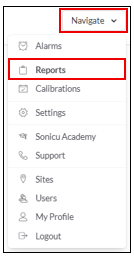
1. Go to Navigate  Reports.
2. Select your Report:
Device Summary Report select from the Core Reports.
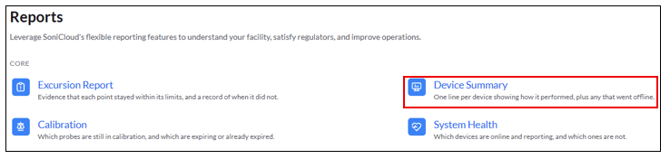
- On-Demand Report: Run the report right now

-
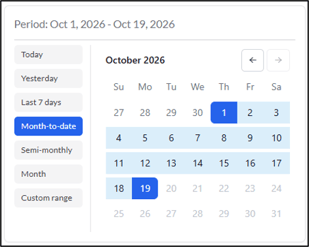
- Select the timeframe you would like to include in the report
-
Today – Automatically selects today’s date
-
Yesterday – Goes back to yesterday’s date
-
Last 7 days – Selects the last 7 days including today
-
Month-to-date – Selects from the first of the month to today’s date
-
Semi-Monthly – Select 1st-15th or 16th- end of the month
-
Month – Select an entire month
-
Custom Range – Select multiple consecutive days across multiple months up to 31 days
-
- Select the timeframe you would like to include in the report
- Selectyour Points - You can select individual points, entire zones, or entire areas. You can also search by the point name.
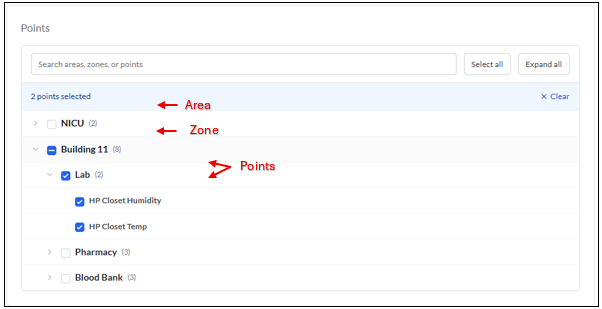
Data Settings - use the toggle to include offline devices in the report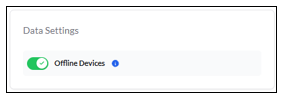
3. Select Run Report
For any more questions regarding Reports, please contact Sonicu Support for assistance. Sonicu Support can be reached by email at support@sonicu.com or by calling 317-468-2345. Sonicu Support is available M-F 8 AM- 5 PM EST.