
Key Steps & Rules:
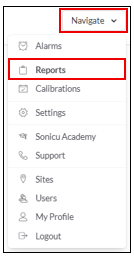
1. Go to Navigate  Reports.
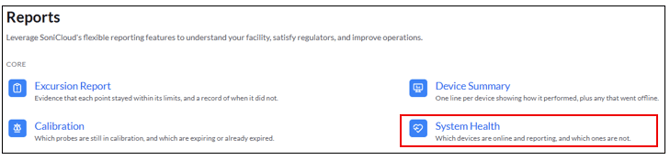
2. Select your Report:
System Health - select from the Core Reports.
- Select Group Reports

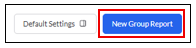
- Select New Group Report
- Fill in the Report Details
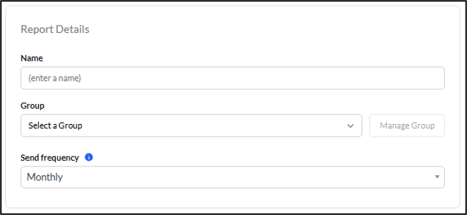
- Enter the report name (Weekly Pharmacy Report)
- Select the Group you want the report sent to (Pharmacy Group)
- Select the Send frequency:
-
- Daily – Sends everyday
- Weekly – Select which day of the week you would like the report to be sent
- Semi-Monthly – Sends two reports a month. One report for the first half and one for the second half of the month.
- Monthly – Sends on the first day of the following month for the entire month before
- Data Settings - use the toggle to select what you would like included in the report
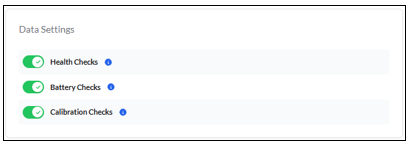
- Health Checks – Checks your alarm setup
- Active and Snoozed Alarms
- Points needing activation (New_Points)
- Zones without alarm recipients
- Users without notifications enabled
- SNAP probe status
- Battery Checks – Lists each device with its last battery voltage and how long until it needs charging again, and flags devices where Battery Saver Mode is recommended.
- Calibration Checks – Shows SNAP enrollment and each probe’s NIST certificate dates. It groups them by expired in the last year and expired over a year ago. Certificates expiring within the next 60 days are also flagged.
5. Select Save Group Report
For any more questions regarding Reports, please contact Sonicu Support for assistance. Sonicu Support can be reached by email at support@sonicu.com or by calling 317-468-2345. Sonicu Support is available M-F 8 AM- 5 PM EST.