
Key Steps & Rules:
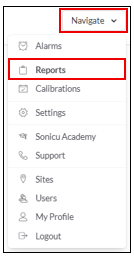
1. Go to Navigate  Reports.
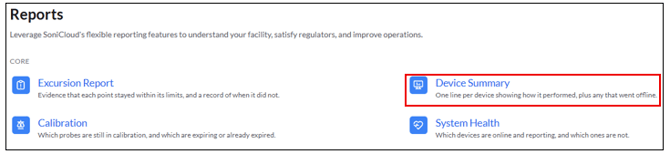
2. Select your Report:
Device Summary - select from the Core Reports.
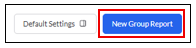
- Select New Group Report

- Select New Group Report
- Fill in the Report Details
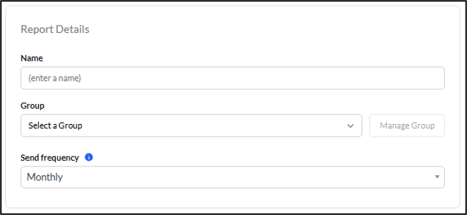
- Enter the report name (Weekly Pharmacy Report)
- Select the Group you want the report sent to (Pharmacy Group)
- Select the Send frequency:
-
- Daily – Sends everyday
- Weekly – Select which day of the week you would like the report to be sent
- Semi-Monthly – Sends two reports a month. One report for the first half and one for the second half of the month.
- Monthly – Sends on the first day of the following month for the entire month before
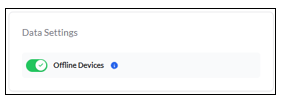
- Data Settings - use the toggle to select what you would like included in the report
5. Select Save Group Report
For any more questions regarding Reports, please contact Sonicu Support for assistance. Sonicu Support can be reached by email at support@sonicu.com or by calling 317-468-2345. Sonicu Support is available M-F 8 AM- 5 PM EST.