
Key Steps & Rules:
1. Go to Navigate  Reports.
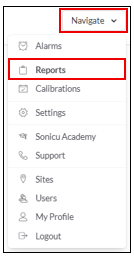
2. Select your Report:
Excursion Report - The Excursion Report contains twice-daily readings in tabular and graph form, as well as alarm information, mean kinetic temperature, data logs, and much more.
- Select the Excursion Report from the Core Reports.
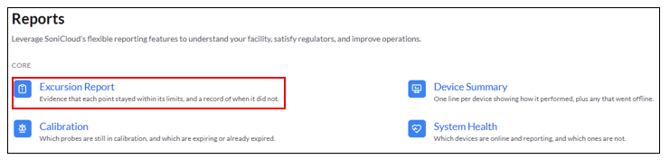
- On-Demand Report: Run the report right now

-
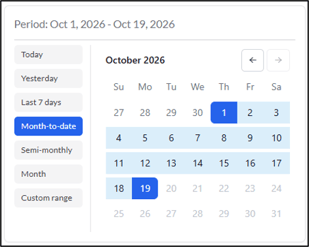
- Select the timeframe you would like to include in the report
-
Today – Automatically selects today’s date
-
Yesterday – Goes back to yesterday’s date
-
Last 7 days – Selects the last 7 days including today
-
Month-to-date – Selects from the first of the month to today’s date
-
Semi-Monthly – Select 1st-15th or 16th- end of the month
-
Month – Select an entire month
-
Custom Range – Select multiple consecutive days across multiple months up to 31 days
-
- Select the timeframe you would like to include in the report
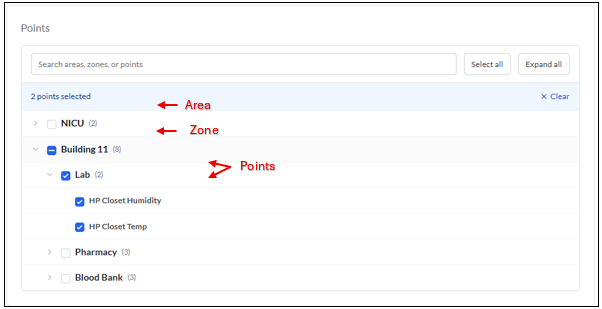
- Select your Points - You can select individual points, entire zones, or entire areas. You can also search by the point name.
Data Settings & Daily Readings
This section allows you to customize what metrics appear on your report and how those calculations are grouped over time.
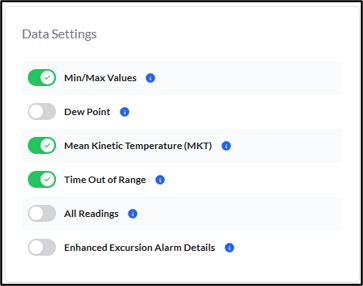
- Use the toggles in the Data Settings panel to choose which specific data points to calculate and include in your report:
-
Min/Max Values: Includes minimum and maximum values (calculated either by calendar day or by reading window) on the graph.
-
Dew Point: Includes the dew point calculation (only available for sensors that record both temperature and humidity). Dew Point always uses the latest temperature and humidity readings recorded at or before each scheduled reading time.
- Mean Kinetic Temperature (MKT): Includes the MKT on the excursion report (temperature sensors only).
- Time Out of Range: Includes the total minutes during each calendar day or reading window that readings were above or below threshold limits. (Note: Caution ranges are excluded from this calculation.)
- All Readings: Includes every individual reading taken for the selected date range. Readings past a High/Low threshold are highlighted in red, and readings in the Caution range are highlighted in yellow.
- Enhanced Excursion Alarm Details: Includes a detailed graph spanning from shortly before the excursion began to shortly after it resolved, along with the average, min, max, and total time spent in each threshold range.
The report displays two logged readings for each day based on the custom times you select:
- First Reading: The last recorded reading between midnight (00:00:00) and your first set reading time.
- Second Reading: The last recorded reading taken after the first reading time and up to your second set reading time.
(Note: These two daily readings appear the same regardless of which Summarize Values option you select below.)
Summarize Values
Summarize Values sets the time frame used to calculate your summary metrics:
- Per Calendar Day: Calculates one set of summary values for the full 24-hour calendar day (00:00:00 to 23:59:59).
- Per Reading Window: Calculates a separate set of summary values for each of the two windows each day.
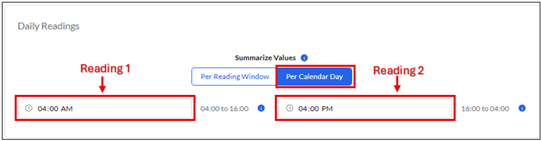
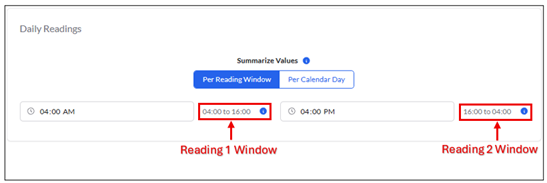
Example: If your reading times are set to 04:00 AM and 04:00 PM, your summary windows will be:
Window 1: From 16:00 the previous day up to 04:00 today.
Window 2: From 04:00 today up to 16:00 today. (Any time recorded after 16:00 counts toward the next day’s window 1.)
Important Rules & Exceptions:
Affected Metrics: Selecting Per Reading Window vs. Per Calendar Day only affects:- Min/Max Values
- Mean Kinetic Temperature (MKT)
- Time Out of Range
- Unaffected Data: Dew Point, All Readings, Enhanced Excursion Alarm Details, and your two daily readings remain unchanged either way.
- Dew Point Calculation: Dew Point always uses the latest temperature and humidity readings recorded at or before each scheduled reading time.
Select Run Report
For any more questions regarding Reports, please contact Sonicu Support for assistance. Sonicu Support can be reached by email at support@sonicu.com or by calling 317-468-2345. Sonicu Support is available M-F 8 AM- 5 PM EST.