
Key Steps & Rules:
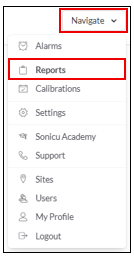
1. Go to Navigate  Reports.
2. Select your Report:
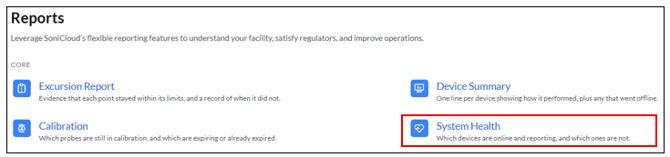
Excursion Report - The Excursion Report contains twice-daily readings in tabular and graph form, as well as alarm information, mean kinetic temperature, data logs, and much more.
- Select the System Health from the Core Reports
- Select Group Reports

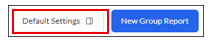
- Select Default Settings: The Default settings allow you to set up a recurring user-specific (non-group) reporting template.
- Use the toggles in the Data Settings panel to choose which specific data points to calculate and include in your report:
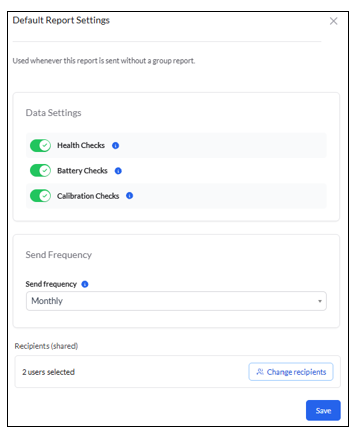
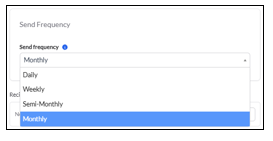
- Select your Send Frequency
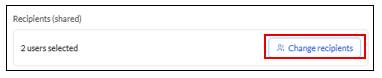
- Select the users the report needs to be sent to by clicking "Change Recipients"
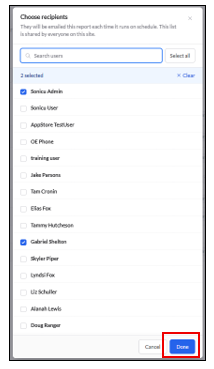
- Select your users and click Done
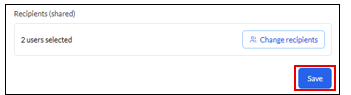
- Save the Default Report Settings
For any more questions regarding Reports, please contact Sonicu Support for assistance. Sonicu Support can be reached by email at support@sonicu.com or by calling 317-468-2345. Sonicu Support is available M-F 8 AM- 5 PM EST.