
Before You Begin
User Permissions Required: Administrator Users
Recommended Uses
- Heat Index monitoring when employees are only on site during defined working hours.
- Active workflow monitoring when a process, such as compounding, only occurs during defined operational hours.
- Staffed operations where new alarms are only needed while personnel are available to respond.
- Departments or workflows with consistent operating hours.
Do Not Use For
- Monitoring applications where new alarms must be generated 24/7.
- Conditions that require immediate alarm awareness regardless of staffing or operating hours.
- Stopping monitoring or data collection outside operational hours.
- Situations where suppressing new threshold or offline alarms outside the schedule could delay a required response.
Understanding Alarm Creation Schedule
Feature Behavior
- Alarm Creation Schedule is configured per alarm profile and is optional.
- Alarm profiles without a schedule continue to operate according to their existing configuration.
- Only new threshold and offline alarms are suppressed outside the configured schedule.
- Monitoring and data collection continue 24/7.
- Automatic alarm resolution continues 24/7.
- Alarms created before the scheduled window closes can still automatically resolve after the window ends.
- Re-notifications continue to run continuously.
Good to Know
Alarm Creation Schedule controls when new threshold and offline alarms send notifications. It does not stop monitoring or data collection.
Let's Get Started
Step 1 – Navigate to Settings
Navigate to Settings in SoniCloud.
What you'll see
The Settings page opens.
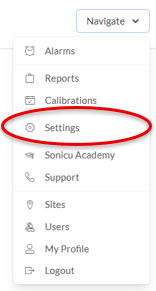
Settings
Step 2 – Open Alarm Profiles
Select Alarm Profiles.
What you'll see
The Alarm Profiles page opens.
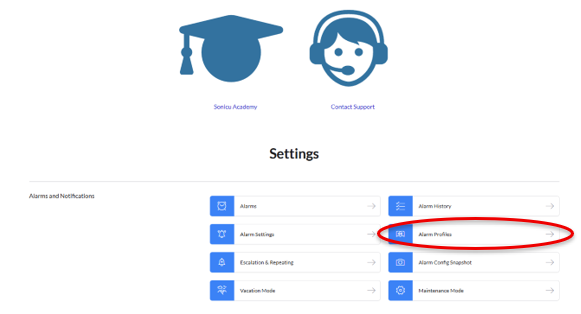
Alarm Profiles
Step 3 – Edit the Alarm Profile
Locate the alarm profile you want to schedule and select the edit icon (pencil).
What you'll see
The selected alarm profile opens for editing.
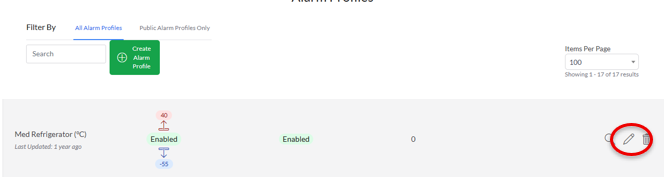
Edit Alarm Profile
Step 4 – Enable Alarm Creation Schedule
Toggle on "Limit alarm generation to a schedule."
What you'll see
The Start and End time fields become available.
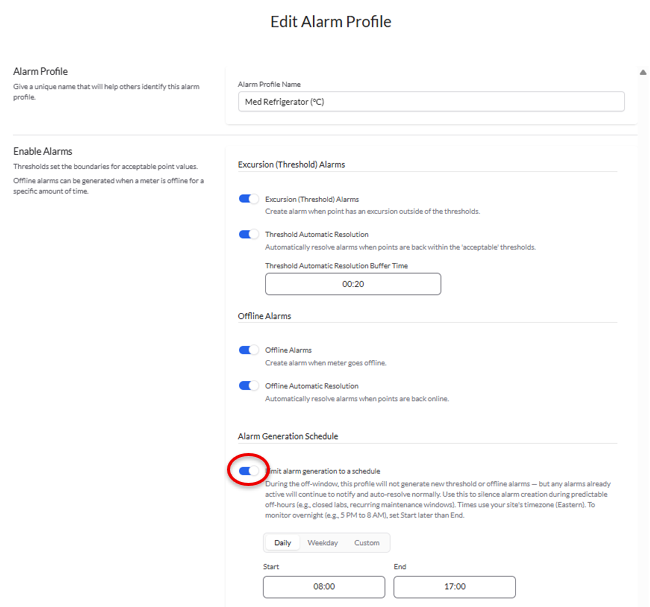
Limit alarm generation to a schedule
Step 5 – Enter the Schedule
Enter the desired Start and End times for the alarm generation window.
What you'll see
The selected alarm-generation window is displayed on the alarm profile.
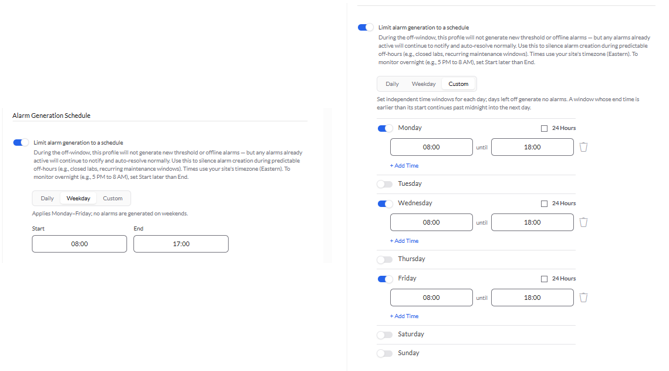
Alarm schedule Start and End times
Step 6 – Save the Alarm Profile
Select "Save Alarm Profile."
What you'll see
The alarm profile is saved with Alarm Creation Schedule enabled.
 Save Alarm Profile
While Alarm Creation Schedule Is Active
- Sensors continue reporting readings.
- Monitoring and data collection continue normally.
- New threshold and offline alarms are suppressed outside the configured schedule.
- Existing alarms can still automatically resolve.
- Re-notifications continue to run.
- A moon icon and tooltip appear on the alarm profile list when a schedule is active.
- A yellow banner appears on the meter view page indicating that the alarm profile is on a schedule.
- A tooltip is available on individual alarm rows.

Alarm profile schedule indicator
 Meter view schedule banner
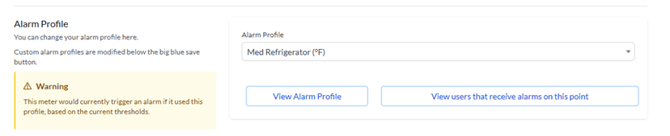 Alarm schedule tooltip
Verify the Results
☐ Alarm Creation Schedule is enabled on the intended alarm profile.
☐ The Start and End times are correct.
☐ The alarm profile has been saved.
☐ The schedule indicator is visible in SoniCloud.
☐ Monitoring and data collection continue outside the scheduled alarm-generation window.
Need Additional Help?
If you have questions about Alarm Creation Schedule or need assistance with your Sonicu system, the Sonicu Support team is here to help.
Email: support@sonicu.com
Phone: (317) 468-2345
Support Hours: Monday–Friday, 8:00 AM – 5:00 PM EST
We are happy to help troubleshoot issues, answer questions, and make sure your monitoring system is working as expected.