
Before You Begin
User Permissions Required: Administrator
Recommended Uses
- Probe replacement
- SNAP probe replacement
- Short-term equipment servicing
- Temporary testing
Do Not Use For
- Long-term alarm suppression
- Alarm configuration changes
Understanding Maintenance Mode
- Bulk alarm suppression across multiple monitoring points (use Admin User Training: Mass Maintenance Mode instead).
Feature Behavior
- Applies to one monitoring point at a time.
- Monitoring continues normally.
- Environmental readings continue to be collected.
- New alarm events are temporarily suppressed.
- Maintenance Mode events are logged in the system.
- Maintenance Mode periods appear on excursion reports.
- Optional notifications can be sent when Maintenance Mode starts and ends.
- Users must have alarm notifications enabled to receive Maintenance Mode notifications.
Good to Know
Maintenance Mode suppresses new alarm generation only. It does not stop monitoring or data collection.
Let's Get Started
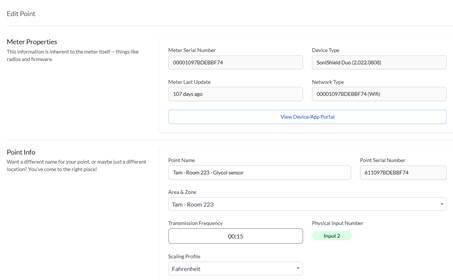
Step 1 – Open the Edit Point Page
Open the Edit Point page for the monitoring point you want to place into Maintenance Mode.
What you'll see
The Edit Point page opens for the selected monitoring point.
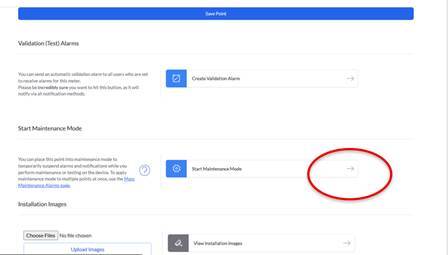
Step 2 – Start Maintenance Mode
Select Start Maintenance Mode.
What you'll see
The Maintenance Mode window opens.
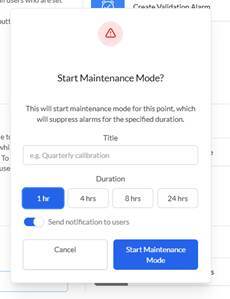
Step 3 – Enter Maintenance Information
Enter a maintenance title, select a duration (1, 4, 8, or 24 hours), and optionally enable Send notification to users.
What you'll see
The selected duration and notification preference are displayed.
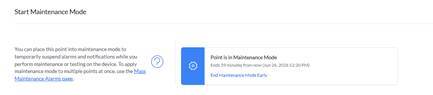
Step 4 – Start Maintenance Mode
Select Start Maintenance Mode to confirm.
What you'll see
Maintenance Mode is activated for the selected monitoring point.
While Maintenance Mode Is Active
- Monitoring continues normally.
- Readings continue to update.
- New alarm events are temporarily suppressed.
- The Maintenance Mode event is recorded.
- The Maintenance Mode period appears on excursion reports.
Ending Maintenance Mode
Maintenance Mode automatically ends when the selected duration expires. If notifications were enabled, subscribed users receive an email when Maintenance Mode ends. You may also end Maintenance Mode early.
Option 1 – End from the Edit Point Page
- Open the Edit Point page for the point in Maintenance Mode
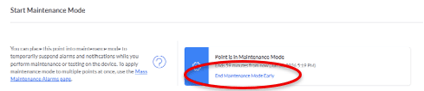
- Select End Maintenance Mode Early.
- Resolve the active Maintenance Mode alarm.
- Optionally enter a comment.
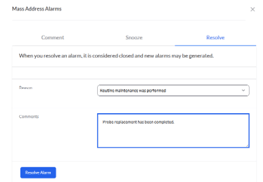
What you'll see
The Maintenance Mode alarm is resolved and alarm monitoring resumes.
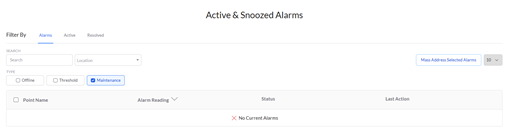
Option 2 – End from the Alarms Page
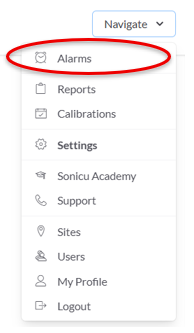
- Open the Alarms page from Settings.
- Locate the active Maintenance Mode alarm.
- Resolve the alarm.
- Optionally enter a comment.
What you'll see
The Maintenance Mode alarm is resolved and monitoring resumes.
Verify the Results
- The Maintenance Mode alarm has been resolved.
- Alarm monitoring resumes.
- Monitoring data continues without interruption.
- The Maintenance Mode event appears on excursion reports.
Need Additional Help?
If you have questions about Maintenance Mode by Point or need assistance with your Sonicu system, the Sonicu Support team is here to help.
Email: support@sonicu.com
Phone: (317) 468-2345
Support Hours: Monday–Friday, 8:00 AM – 5:00 PM EST
We are happy to help troubleshoot issues, answer questions, and make sure your monitoring system is working as expected.