
Understanding Resolved-Alarm Notifications
Resolved-alarm notifications provide a proactive email update when an alarm is resolved. This notification is sent in addition to the existing notification generated when an alarm begins.
For example, if a freezer temperature moves outside its acceptable range, SoniCloud generates an alarm. Once the temperature returns to its acceptable range and the alarm is automatically or manually resolved, users with resolved-alarm notifications enabled receive an email.
Before You Begin
Important: Before resolved-alarm notifications can be configured for individual users, a Site Admin must contact Sonicu Support or their Sonicu Customer Success Manager and request that the feature be enabled for the site. This request must come from a Site Admin; View Users cannot request or enable this feature.
After Sonicu enables the feature, the Resolved-Alarm Notifications option will appear when a Site Admin edits a user.
User Permissions Required: Site Admin
Resolved-alarm notifications can be configured in one of two ways:
- Entire Site: Notifications are enabled for all applicable users at the site. Individual user settings do not need to be configured.
- Individual Users: A Site Admin selects which users should receive resolved-alarm notifications by enabling the setting in each user’s profile.
When requesting the feature, the Site Admin should tell Sonicu whether notifications should be enabled for the entire site or managed by individual user.
Additional information:
- Resolved-alarm notifications are available with Professional and Premium service tiers.
- Notifications are disabled for individual users by default unless they are required for everyone at the site.
- The user setting is managed separately for each site.
- Resolved-alarm notifications are sent by email.
- Users in Vacation Mode do not receive resolved-alarm notifications.
- Resolution notifications are not sent for Maintenance Alarms or Validation Alarms.
How Resolved-Alarm Notifications Work
- When an alarm is resolved, SoniCloud sends a resolution notification email to users who have the notification enabled.
- Alarms may be resolved automatically when conditions return to the acceptable range or manually by an authorized user.
- When multiple alarms are resolved within a 10-minute period, SoniCloud combines them into one email.
- Each user can be individually enabled or disabled unless resolved-alarm notifications are required for everyone at the site.
Configuring Notifications for the Entire Site
A Site Admin must contact Sonicu Support or their Sonicu Customer Success Manager to request that resolved-alarm notifications be enabled for the entire site.
When notifications are enabled for the entire site:
- All applicable users automatically receive resolved-alarm notifications.
- Individual user settings do not need to be configured.
- Individual users cannot disable the notifications.
- Vacation Mode is still respected.
- Maintenance Alarm and Validation Alarm resolutions do not generate notifications.
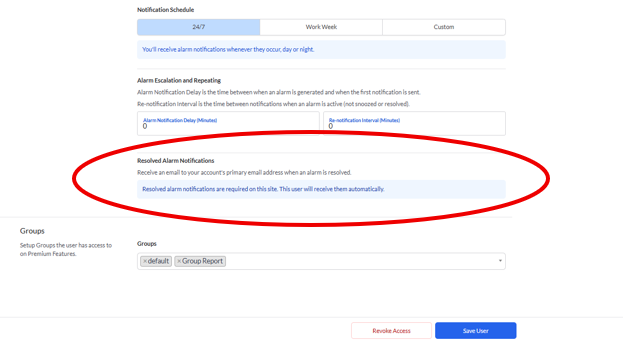
What you’ll see: The Resolved-Alarm Notifications setting indicates that notifications are required for the site and cannot be changed.
Configuring Notifications for Individual Users
If resolved-alarm notifications will be managed by individual user, Sonicu must first enable the feature for the site. After the feature is enabled, a Site Admin can select which users should receive the notifications.
Step 1: Open the Users Page
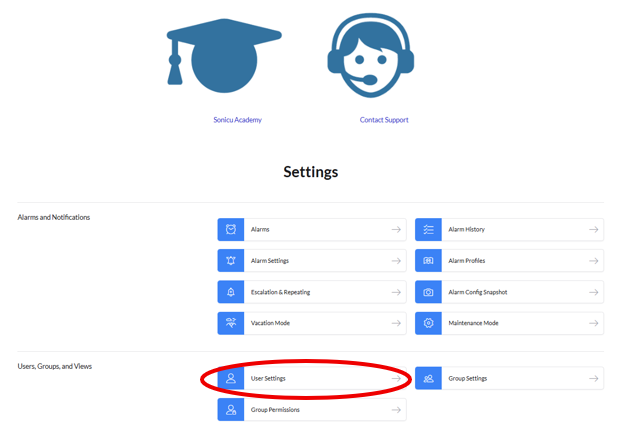
From the SoniCloud site, navigate to Settings, and then select Users.
What you’ll see: A list of users associated with the site.
Step 2: Edit the User
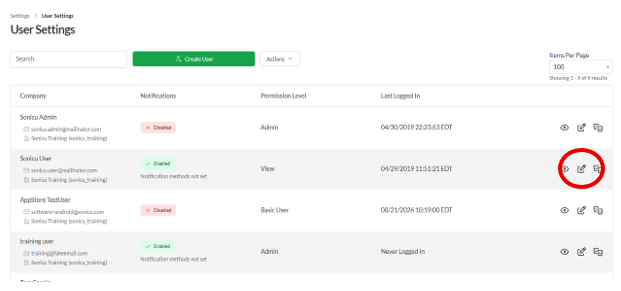
Find the user who should receive resolved-alarm notifications. Select the pencil icon next to the user’s name to edit the user’s settings.
What you’ll see: The selected user’s profile and notification settings.
Step 3: Enable Resolved-Alarm Notifications
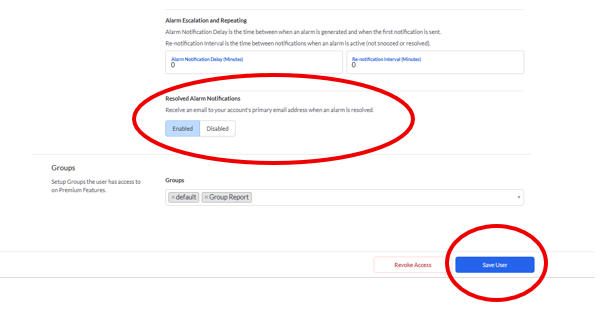
Locate Resolved-Alarm Notifications at the bottom of the page and select Enable and Save User.
This setting applies to the selected user at the current site. Repeat these steps for each user who should receive resolved-alarm notifications.
What you’ll see: The Resolved-Alarm Notifications setting displays Enable.
Disabling Resolved-Alarm Notifications
To stop resolved-alarm notifications for a user:
- Navigate to Settings > Users.
- Find the applicable user and select the pencil icon.
- Locate Resolved-Alarm Notifications and select Disable.
This setting cannot be disabled when resolved-alarm notifications are required for everyone at the site.
What Happens Next
After resolved-alarm notifications are enabled for a user, SoniCloud sends that user an email when an applicable alarm is resolved.
If several alarms are resolved within the same 10-minute period, they are grouped into one email to reduce the number of notifications received.
Verify the Setting
From Settings > Users, select the pencil icon next to the applicable user. Confirm that Enable appears under Resolved-Alarm Notifications.
If the setting is controlled at the site level, the user’s profile indicates that resolved-alarm notifications are required and cannot be changed.
Need Additional Help?
If you have questions or need assistance with your Sonicu system, the Sonicu Support team is here to help.
Email: support@sonicu.com
Phone: (317) 468-2345
Support Hours: Monday–Friday, 8:00 AM–5:00 PM ET
We are happy to help troubleshoot issues, answer questions, and make sure your monitoring system is working as expected.