
User Permissions Required: Administrator or View Users
Recommended Uses
- Review the overall health of your monitoring system.
- Verify alarm readiness and system configuration.
- Monitor calibration compliance.
- Review battery health of monitoring devices.
- Prepare for internal reviews, audits, and inspections.
- Identify potential issues before they impact monitoring.
Do Not Use For
- Viewing historical sensor data or trends.
- Real-time system monitoring.
- Editing system configuration or alarm settings.
Understanding the System Health Report
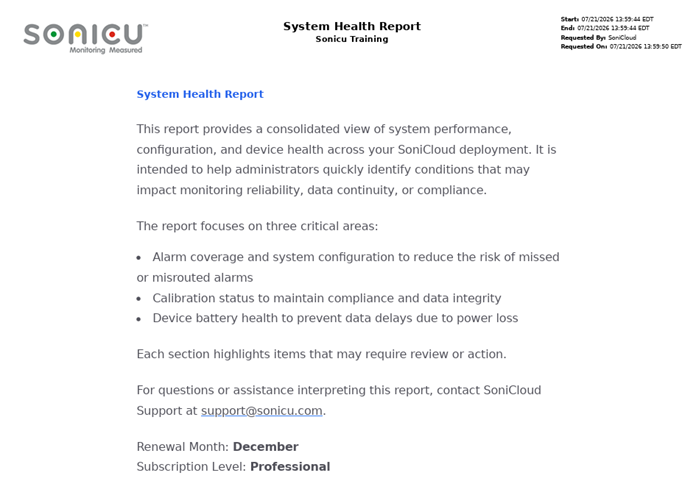
The System Health Report provides a consolidated snapshot of your SoniCloud platform at the time the report is generated.
Rather than reviewing multiple pages throughout SoniCloud, this report combines important system health information into a single PDF that is delivered by email. It helps identify configuration issues, alarm readiness, calibration status, and device health so corrective action can be taken before problems affect your monitoring program.
The report is generated on demand and reflects the current state of your system when the report is created.
What's Included
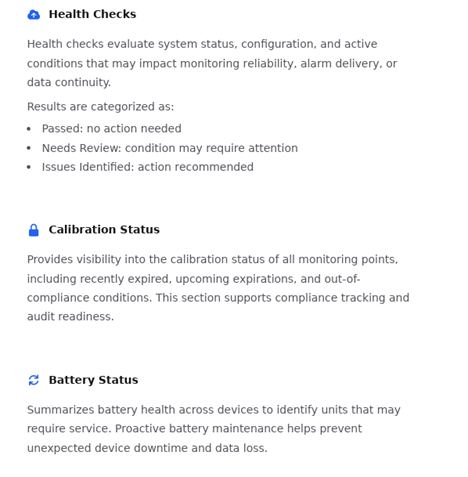
Health Checks
The Health Checks section evaluates key areas of your SoniCloud system that can affect monitoring reliability, alarm delivery, and overall system readiness. Each Health Check provides a quick assessment to help identify potential issues before they impact your monitoring program.
Points In Range / Caution / In Alarm
Displays the current operating status of all monitoring points.
- In Range – The monitoring point is operating within its configured alarm limits.
- In Caution – The monitoring point has exceeded a caution threshold but has not reached an alarm condition.
- In Alarm – The monitoring point has exceeded its alarm threshold and requires attention.
This provides a quick overview of the current environmental conditions across your facility.
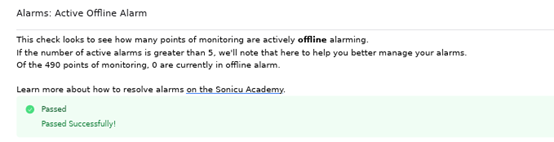
Points Offline
Displays monitoring points that have not communicated with SoniCloud within the last 12 hours.
Offline points may indicate:
- Network connectivity issues
- Loss of power
- Device failure
- Communication interruptions
Offline devices should be investigated promptly to prevent gaps in monitoring and alarm coverage.
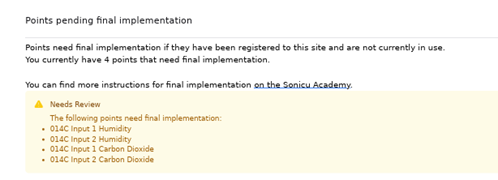
Points That Need Activation
Identifies newly installed equipment that has not yet been fully configured for use.
Examples include devices that:
- Remain in the default location (New Points)
- Have not been assigned to their monitoring area
- Have not completed initial configuration
These devices should be activated before they are placed into service.
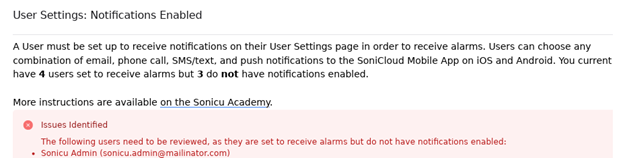
User Notifications Enabled
Verifies that every user assigned to receive alarm notifications has notifications enabled.
This Health Check identifies situations where a user has been assigned to receive alarms, but notification delivery has been disabled.
Correct notification settings help ensure alarms are delivered to the intended recipients.
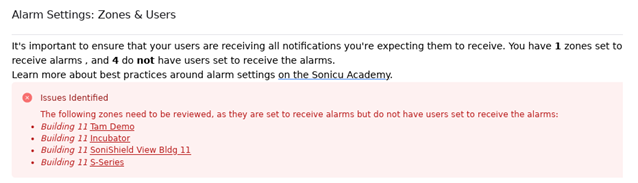
Alarm Settings for Zones & Users
Verifies that every zone capable of generating alarms has at least one user assigned to receive alarm notifications.
This Health Check evaluates only zones containing alarm-enabled monitoring points.
If no alarm-enabled monitoring points exist, this Health Check automatically passes because there are no alarm assignments to validate.
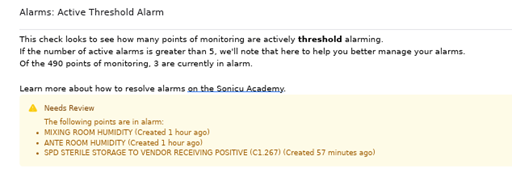
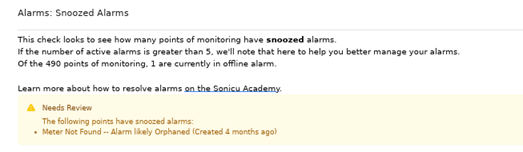
Active Threshold, Offline, and Snoozed Alarms
Summarizes the number of alarms currently active within your system.
The report includes:
- Active Threshold Alarms
- Active Offline Alarms
- Snoozed Alarms
Based on the number of active alarms relative to the total number of monitoring points, the report assigns one of the following statuses:
- Pass – Alarm activity is within normal expectations.
- Needs Review – Alarm activity should be reviewed.
- Issues Identified – A significant number of active alarms may require immediate attention.
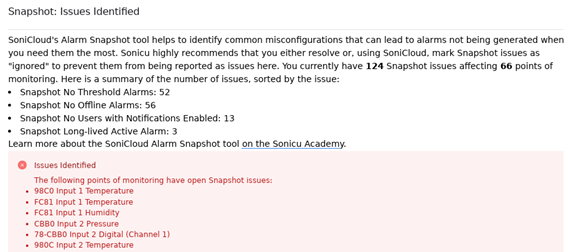
Snapshot Issues Identified
Identifies unresolved snapshot issues for applicable monitoring devices.
This section only appears when unresolved snapshot issues are present.
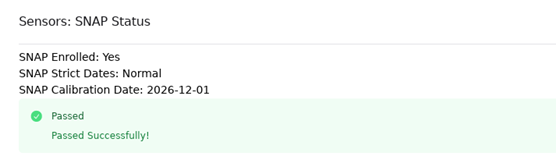
SNAP Information
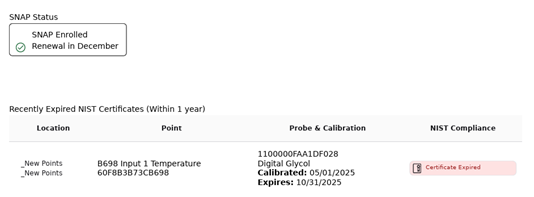
Displays whether your organization participates in the Sonicu SNAP Calibration Program.
This section is informational only and is displayed only for organizations enrolled in the SNAP program.
Calibration Status
The Calibration Status section helps you monitor the calibration compliance of your environmental monitoring system by displaying the current status of each monitoring point's NIST-traceable calibration certificate.
Regularly reviewing calibration status helps ensure measurement accuracy, supports regulatory compliance, and identifies devices that require recalibration before they impact your monitoring program.
Recently Expired NIST Certificates
Displays monitoring points with NIST-traceable calibration certificates that have expired within the past 12 months.
These devices should be reviewed and scheduled for recalibration as soon as practical.
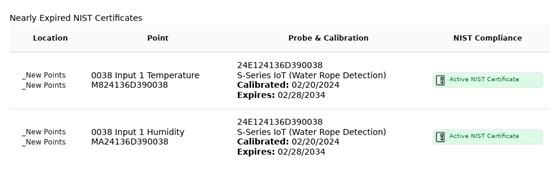
Nearly Expired NIST Certificates
Displays monitoring points with calibration certificates that are approaching their expiration date.
Review this section regularly to proactively schedule recalibration before certificates expire.
Expired NIST Certificates
Displays monitoring points with calibration certificates that have exceeded their expiration date.
These devices should be evaluated immediately according to your organization's quality procedures.
Why This Matters
Regularly reviewing calibration status helps you:
- Maintain accurate environmental monitoring
- Support regulatory inspections and audits
- Identify certificates requiring renewal
- Schedule calibration proactively
- Maintain confidence in your monitoring system
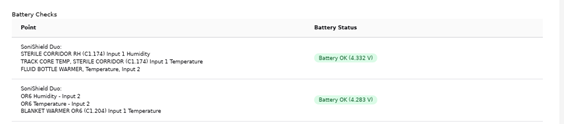
Battery Status
The Battery Status section provides an overview of the battery health for each battery-powered monitoring device on your SoniCloud platform.
Monitoring battery health proactively helps prevent unexpected device outages, communication interruptions, and potential gaps in environmental monitoring.
Battery Level
Displays the current battery charge level for each battery-powered monitoring device.
Devices with low battery levels should be scheduled for charging or battery replacement before communication is interrupted.
Estimated Remaining Battery Life
Provides an estimate of the remaining operating life based on the current battery level and typical device usage.
This information helps prioritize maintenance activities.
Charging Recommendation
When appropriate, the report recommends charging the device to maintain reliable operation.
Following these recommendations helps reduce the risk of devices going offline unexpectedly.
Battery Saver Recommendation
When applicable, the report may recommend enabling Battery Saver Mode to extend battery life.
Battery Saver Mode can help maximize operating time for devices expected to remain in service for extended periods without access to charging.
Why This Matters
Regularly monitoring battery health helps you:
- Prevent unexpected device outages
- Reduce the risk of communication interruptions
- Schedule maintenance proactively
- Maintain continuous environmental monitoring
- Improve overall system reliability
Let's Get Started
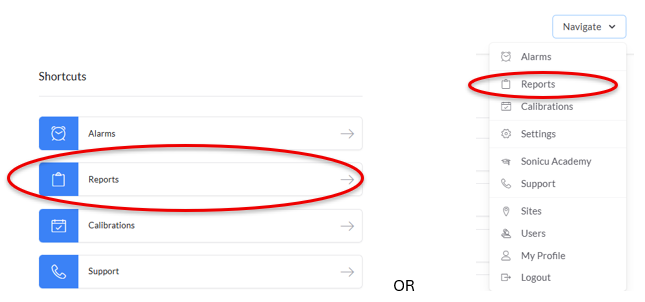
Step 1 – Open the Reports Page
Navigate to the Reports page either from the Dashboard page or from the Settings page.
What you'll see
Step 2 – Select System Health Report
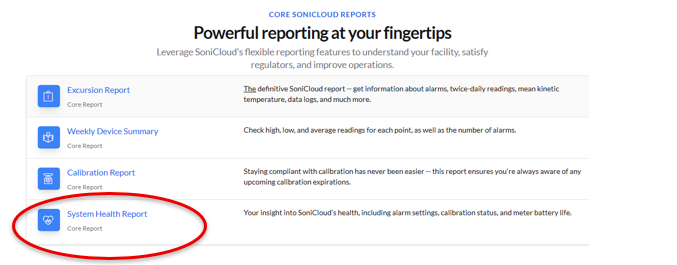
Select System Health Report.
What you'll see
Step 3 – Select a Report Type
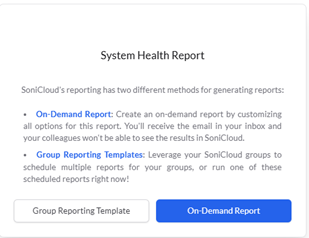
Choose one of the following:
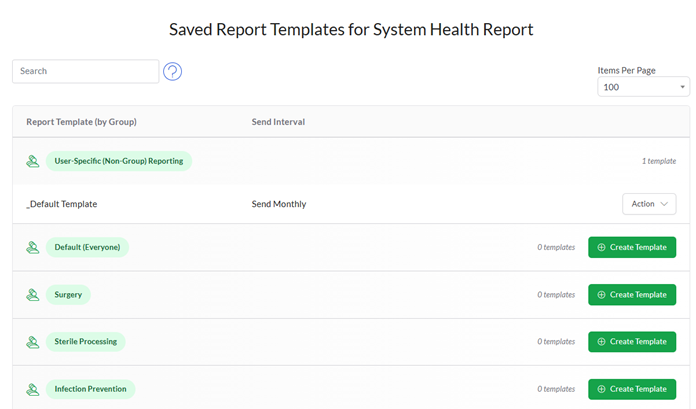
Group Reporting Template
- Schedule recurring reports
- Run previously scheduled reports
- Generate reports for multiple groups
On-Demand Report
- Customize report options
- Generate a report immediately
- Receive the completed report by email
What you'll see
Group Reporting Template

On-Demand Report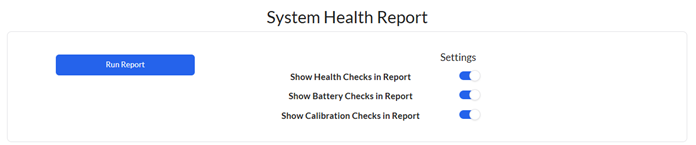
Step 4 – Run the Report
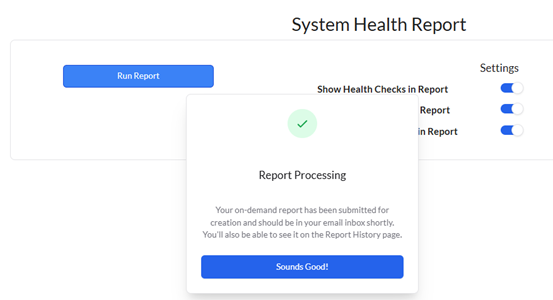
Select Run Report.
What you'll see
The report request is submitted for processing.
Verify the Results
The report has been generated successfully when:
- You receive the PDF by email.
- The report opens successfully.
- Current system health information is displayed.
- Calibration and battery information is included.
How to Interpret the Results
After receiving the report by email, review each section for items that require attention.
Pay particular attention to:
- Health Checks marked Needs Review or Issues Identified
- Monitoring points that are offline
- Users with disabled notifications
- Missing alarm setup
- Expired or nearly expired calibration certificates
- Devices with low battery levels



Addressing these items proactively helps maintain reliable monitoring, improve alarm readiness, and reduce the risk of unexpected system issues.
Need Additional Help?
If you have questions about the System Health Report or need assistance interpreting the results, the Sonicu Support team is here to help.
Email: support@sonicu.com
Phone: (317) 468-2345
Support Hours: Monday–Friday, 8:00 AM – 5:00 PM EST