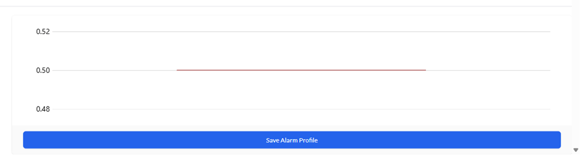
When creating alarm profiles for CCI sensors (e.g., door close, dry contact, leak detection), the graph will now display descriptive states (e.g., open/close, leak detected/no leak) instead of numerical values. However, you will still configure the alarm thresholds using numerical values within the alarm profile settings.
- Go to the SoniCloud site
- Go to the settings page using the “Navigate” tab
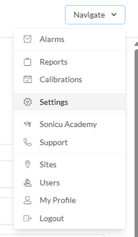
- Select “Alarm Profiles”

- Create a custom alarm profile
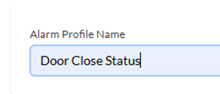
- Name the profile according to the sensor it’s for
- Toggle on the “Excursion (Threshold) Alarms” to allow you to set the values below
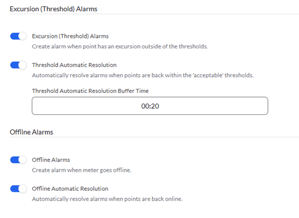
- Set the “Threshold Automatic Resolution Buffer Time” to 20 minutes to align with Sonicu’s default settings.
- Toggle on “Offline Alarms” and “Offline Automatic Resolution” if offline alarms are needed.
Note: On the graph, the top value is 1 and the bottom value is 0. For example, with door close sensors, a value of 1 indicates open, while 0 indicates closed. - The “High Alarm Threshold Limit” value will be set to 0.5, ensuring that when the point goes from closed to open (0 to 1), it will alarm as intended.
No “Low Alarm Threshold Limit” value will need to be set. You can adjust your threshold buffer times. Sonicu’s default threshold buffer time is 35 minutes.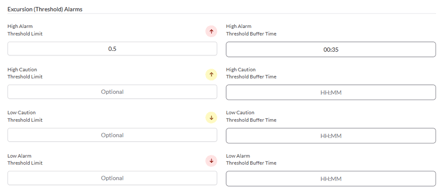
- Sonicu’s recommendation for the “Offline Alarm Buffer Time” is 1 hour and 35 minutes, but can be adjusted if needed.

- You can now save the profile and apply it to the points.